Under Glass website theme: what it includes and who it is for
Under Glass is a one-page app launch website theme with a glass phone. Its six pages, store details, one-file setup, and who it fits or does not.
In this post
Under Glass is a one-page website theme for launching a mobile app. Each feature is one big sentence, and a clear glass phone turns that sentence into your real screenshot. It fits app makers who want a launch page with the store details done properly. It does not fit anyone who needs a multi-page marketing site or a blog.
This post covers what is really in the theme, from its product facts. Under Glass is new on Pulse, so there is no changelog yet and no published speed score.
The problem with most app launch pages
An app launch page has a small job. Show what the app does, then send the visitor to the right store. Many pages get the details around that job wrong. The store badges are the wrong size. Everyone gets the same link, whatever phone they use. There is no privacy or account-deletion page, even though the app stores ask for them.
Under Glass was built around those details. The motion is what you notice first. The store pieces are what save you work.
What the Under Glass website theme includes
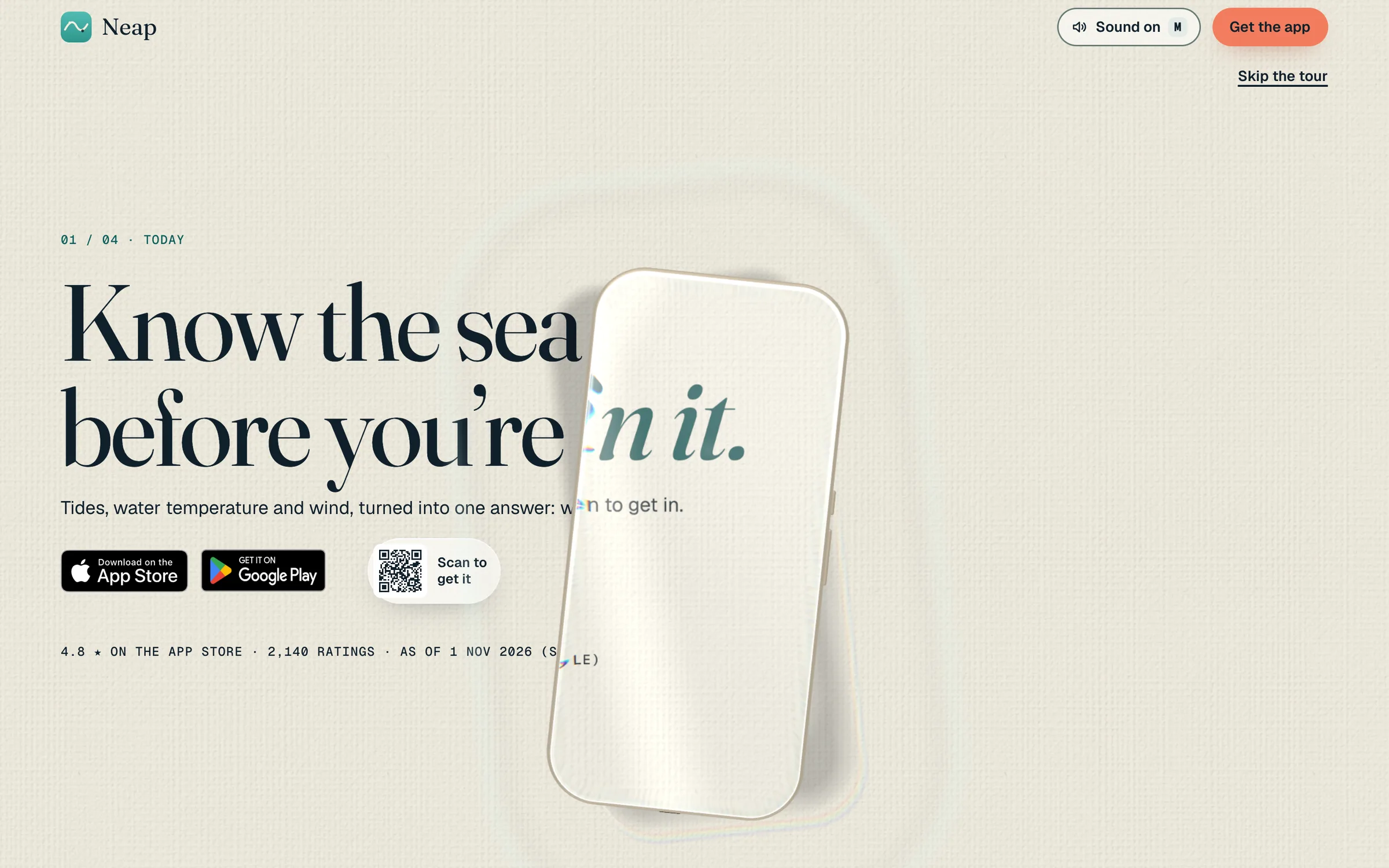
The home page carries the main idea. A feature sentence sits on screen. The glass phone settles on it. The words break into grains and come back as your real screenshot. Then the phone lifts so the visitor sees that screen up close. You can use screenshots or screen recordings. No design tools are needed.
The phone is a design of our own. It is not a copy of anyone's real device, so it is safe to publish.
The theme has six pages:
- Home
- Privacy
- Terms
- Support
- Delete account
- Get the app
These are the features that matter for a launch:
- One file to edit. App name, store links, feature sentences, screenshots, prices, reviews and questions live in one file. Change it and the whole page follows.
- Official store badges at the right sizes.
- A QR code on computers. On a phone, one tap opens the visitor's own store instead.
- Pre-launch mode with a waitlist. When the app goes live, one switch changes the page over.
- Honest rating and pricing blocks, filled from the same file.
- The pages the stores require. Privacy, terms, support and account deletion are already there.
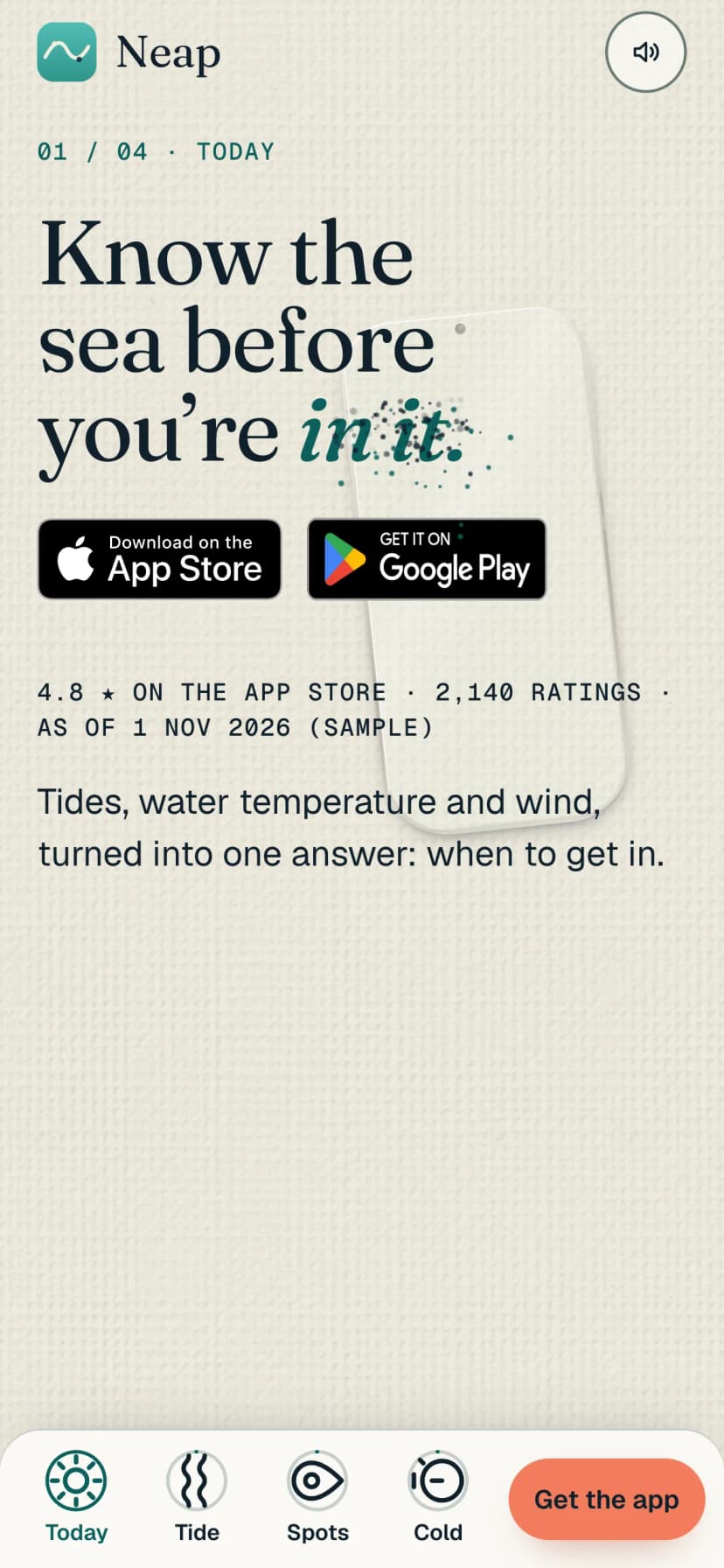
The look is light: soft colours, big serif headlines, and a phone layout made for thumbs. Here are the real home screens on each device.
Under the surface it is Next.js 15 with the App Router, React 19, TypeScript and Tailwind CSS 4. The motion uses GSAP, three.js and Lenis. The exact versions are Next.js 15.5.28, React 19.3.1, TypeScript 5.9.3 and Tailwind CSS 4.3.3.
Who it fits, and who it does not
Under Glass fits:
- An independent developer or small studio with one app close to launch.
- A small business whose app needs a public page before or during store review.
- A web developer building a launch page for a client's app.
It is not the right choice if:
- You have several apps to show. It is a one-page site for one app.
- You need a blog, docs or a long marketing site. The six pages above are all it has.
- You have no screens yet. The main effect shows your real screenshots. Pre-launch mode helps you collect a waitlist, but the feature section needs your screens to work.
- You want legal text written for you. The theme gives you the privacy, terms and deletion pages. What they say about your app is still your responsibility to check.
This post does not cover where waitlist sign-ups are stored. Read the docs before you rely on that part.
How to see the demo and set it up
Start with the live demo on the product page. Scroll through the feature sentences on a computer, then open it on your phone. The QR code and the one-tap store link behave differently on each, and that is the point.
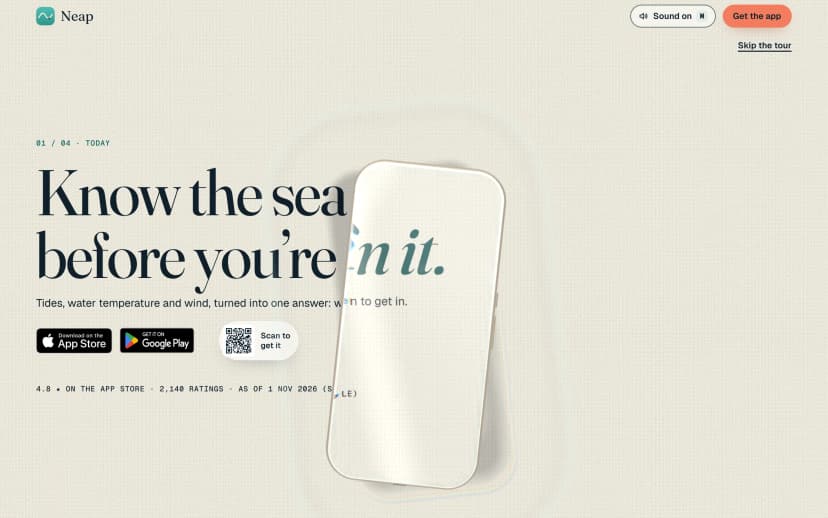
If it suits your app, setup follows the usual Next.js path.
- Try the live demoOpen it on a computer and on a phone to see the QR code and the one-tap store link.
- Install and run locallyUnzip the theme, run npm install, then npm run dev to see it in your browser.
- Edit the one content fileAdd your app name, store links, feature sentences, screenshots, prices, reviews and questions.
- Check the store pagesReview Privacy, Terms, Support and Delete account so they match how your app really works.
- Launch in pre-launch modePublish with the waitlist on while the app is in review.
- Flip the switch to liveWhen the app is in the stores, turn pre-launch off and rebuild with npm run build.
The commands are the standard ones:
npm install
npm run dev
npm run build
The Under Glass docs are split into sections: Getting started, Sections and pages, Your app's content (one file), Troubleshooting, Speed and accessibility, and Licence and support. Read "Your app's content" first. Most of your time goes into that one file.
What to do next
Gather your screenshots or short screen recordings before you start. Write one plain sentence per feature. Those two things decide how the page feels far more than any setting.
Questions
Do I need design tools to make the feature screens?
No. You use your own screenshots or screen recordings, and the theme puts them under the glass phone.
Can I publish the page before my app is in the stores?
Yes. Pre-launch mode shows a waitlist. When the app is live, one switch changes the page over.
Does it include the pages the app stores ask for?
It includes Privacy, Terms, Support and Delete account pages. You still need to check the wording fits your app.
Can I use it for a client's app?
Pulse products have one licence that covers unlimited sites, your own or your clients', personal or commercial.
What does it run on?
Next.js 15 with the App Router, React 19, TypeScript and Tailwind CSS 4, with GSAP, three.js and Lenis for motion.
For more on client work, see which licence you need for a client site. If your app is close to launch, the Under Glass page has the live demo, both films and the real screens to judge it by.